Civitatis eSIM Card Mexico
Description
Looking to maintain communication with your loved ones during your journey in Mexico? This eSIM card offers data connectivity throughout the country, enabling you to browse online and stay engaged while sharing memories on your social platforms.
How Does It Function?
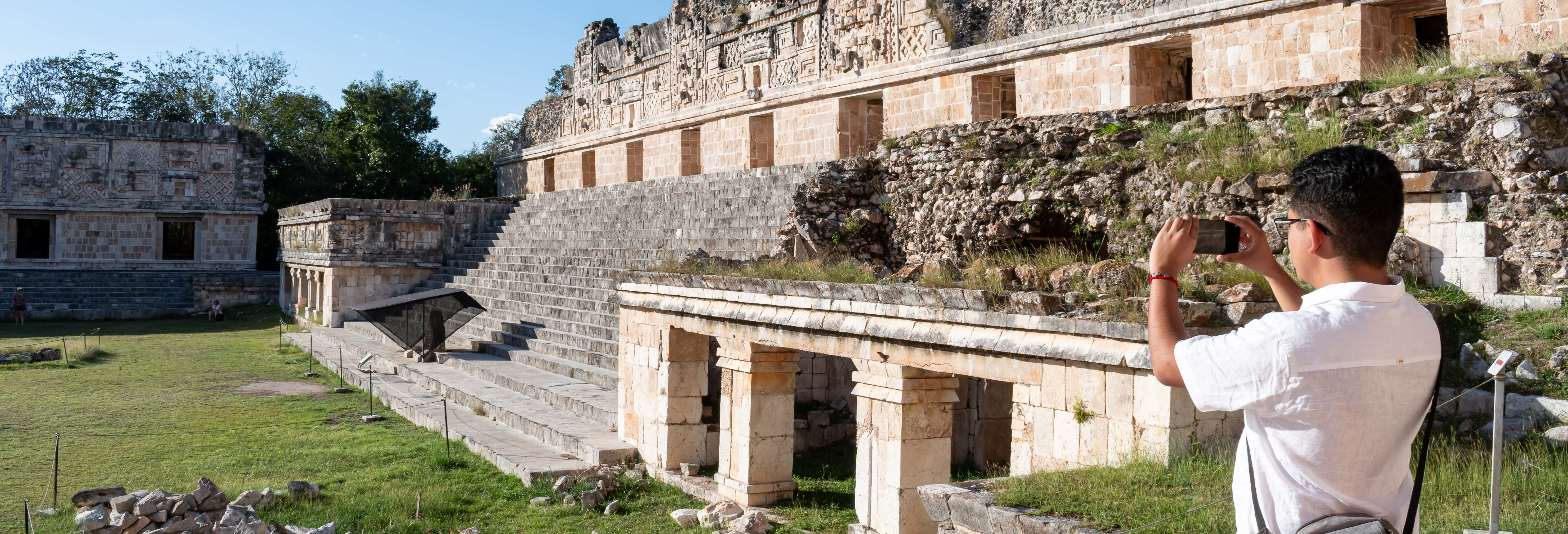
Wish to stay connected while exploring the Mayan pyramids in the Yucatan or video chatting while navigating the canals of Xochimilco? This eSIM card grants you internet access across Mexico for durations ranging from 7 to 30 days, tailored to your selection.
Capture and share images from the stunning Mexican Caribbean and gather insights as you journey through the enchanting Pueblos Mágicos scattered across the nation. Depending on the choice you make, your data allowance will be between 1 GB and 10 GB.
Once your order is completed, simply adhere to the instructions delivered to your email—it's a straightforward process! After finishing the set-up, you are ready to navigate the web in Mexico without needing to visit a physical location for collection, all thanks to this electronic card.
What Do You Need?
Requirements are minimal:
- Your mobile device must support eSIM technology. For your convenience, refer to a list of mobile devices compatible with eSIM.
- Your mobile device should be unlocked. An unlocked device can utilize any network provider, while a locked device is restricted to a specific carrier's network.
What's included
- An eSIM card for the selected duration
Cancellation policy
Non rimborsabile
Accessibility
Wheelchair accessible.
Important information
How to install the eSIM?
You can install the eSIM in two different ways: with the QR code or manually.
Installation with QR code for Apple devices
- Go to 'Settings > Mobile/Cellular Data > Add Cellular plan'
- Click 'Use QR code' and then scan the code
- Click 'Activate eSIM' and then 'Continue'
- Select or write a name (E.g eSIM Civitatis)
- Choose the eSIM, click 'Turn on this line' and activate 'Data roaming'
- Select your eSIM as your preferred network for 'Mobile/Cellular Data', when you arrive in your destination
- IMPORTANT: Don't activate 'Allow Mobile Data Change'.
Installation with QR code for Android devices
- Go to 'Settings', select 'Networks and Internet', then tap the + sign by 'Mobile Network'
- Click next when asked 'Don't have a SIM card?'
- When you see 'Scan your network's QR code', use your phone to scan the QR code, then click 'download'
- When the screen shows “Download complete”, click on 'Settings'
- Choose the eSIM from 'SIM Cards'
- Activate 'Use SIM' and select 'Yes'
- Activate 'Mobile Data'
- Activate 'Data Roaming' and select 'OK'
Manual installation for Apple devices
- Go to 'Settings > Mobile/Cellular Data > Add Cellular plan'
- Choose ''Use QR code', then click 'Enter details manually' at the bottom
- Enter the 'SM-DP+ Address' and the 'Activation code' that you'll find on your Civitatis voucher titled IOS. Then, click 'Next'
- Click 'Activate eSIM' and then 'Continue'
- Select or write a name (E.g eSIM Civitatis)
- Choose the eSIM, click 'Turn on this line' and activate 'Data roaming'
- Select your eSIM as your preferred network for 'Mobile/Cellular Data', when you arrive in your destination
- IMPORTANT: Don't activate 'Allow Mobile Data Change'.
Manual installation for Android devices
- Go to 'Setting', 'Networks and Internet', then tap the + sign by 'Mobile Network'
- Click next when asked 'Don't have a SIM card?'
- Tap 'Need help?', then 'Enter code manually'
- Write the Android code, which you'll find on your Civitatis voucher “Android: Code” tap 'Continue' and then 'Download'
- When the screen shows “Download complete”, click on 'Settings'
- Choose the eSIM from 'SIM Cards'
- Activate 'Use SIM' and select 'Yes'
- Activate 'Mobile Data'
- Activate 'Data Roaming' and select 'OK'